Host WebUI — Operating Concept¶
How the RaceLink Host WebUI is structured, what each piece is for,
and how to read its lifecycle and state signalling. Companion to
OPERATOR_GUIDE.md (which is task-shaped) and
CONCEPTS.md (which explains the wire opcodes).
Audience. Operators who already know what they want to do (run a scene, update firmware) and want to know how the WebUI behaves while they do it.
The host WebUI is mounted at /racelink in both hosting modes:
- Standalone:
http://127.0.0.1:5077/racelink/ - RotorHazard plugin:
http://<rotorhazard-host>:5000/racelink/
In both modes the same HTML, JS, and CSS are served — the host owns the WebUI assets, the plugin only mounts them.
Page layout¶
The WebUI has three top-level pages:
| Page | URL | Purpose |
|---|---|---|
| Devices | /racelink/ |
Device discovery, group management, device specials, RL preset library |
| Scenes | /racelink/scenes |
Scene authoring, scene library, scene runner |
| (implicit) | dialog modals | OTA firmware update, RL Preset editor, WLED Presets uploader, Discover, Specials per device |
Header navigation (<a class="rl-nav-link">) links between Devices
and Scenes. The active page's link is highlighted.
Devices page¶
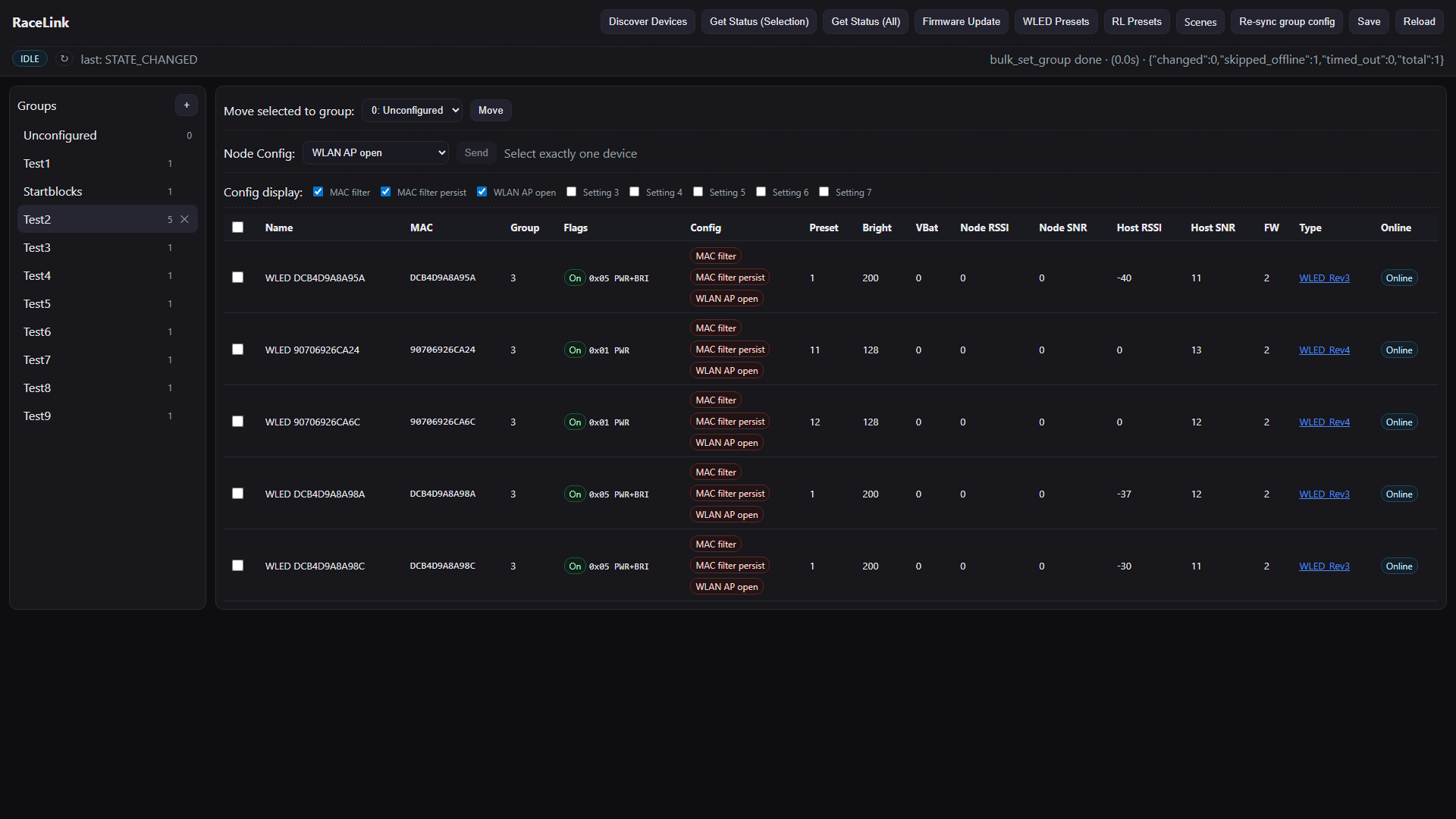
The header carries the master pill (gateway state), refresh
button, and a link to the Scenes page. The toolbar groups the
top-level actions: Discover, Get Status, Re-sync group
config, plus the bulk-move controls. The left sidebar lists
groups; each row shows an M / N count — devices currently
online out of total devices in the group. Hover the count for a
tooltip that defines "online" (replied to the last status query
or sent an unsolicited IDENTIFY_REPLY recently). When any
device in a group receives data, the group's row briefly flashes
— the same visual language the device-table rows use, so the
sidebar feels live alongside the table. The right pane holds the
device table, one row per device. Per-device controls hang off
each row:
- Specials button — opens a per-device-type configuration modal (per-capability options, e.g. startblock display brightness).
- Node Config dropdown — single-shot device commands (forget master MAC, reboot node, AP open/closed).
Scenes page¶
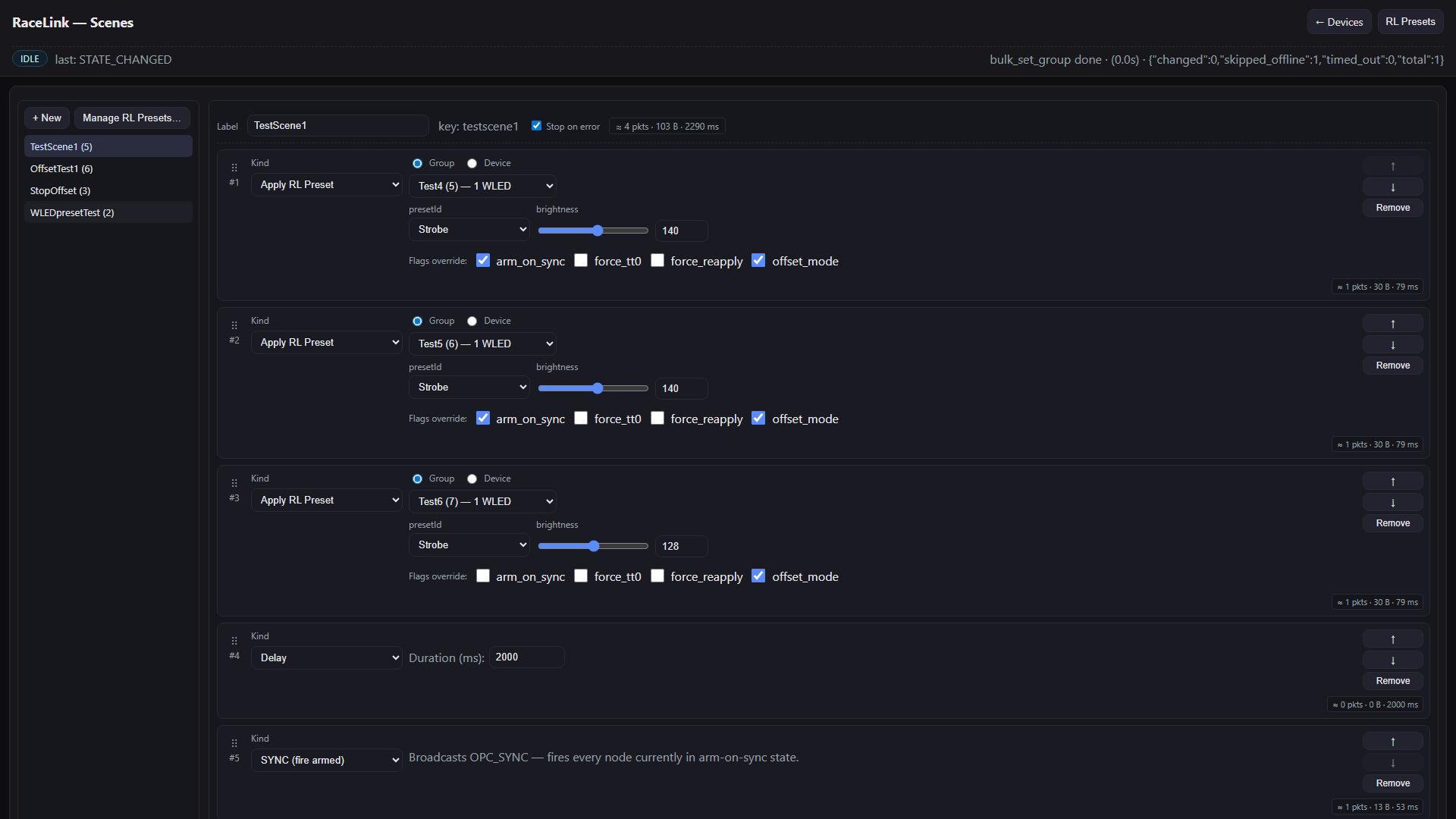
The sidebar lists saved scenes plus the + New / Duplicate / Delete / Manage RL Presets actions. The right pane is the scene editor: a label field, a Stop on error toggle, and the action list. Each action row carries a drag-handle for reordering, a kind-dropdown, target-picker, params widget, flags overrides, and a per-action cost badge. The total cost is shown at the bottom of the editor, plus the last-run measured wall-clock.
The target-picker is the same three-radio component everywhere
it appears (top-level effects, Offset Group containers,
Offset Group children): Broadcast / Groups /
Device. Container scope hides Device. Selecting every known
group manually shows a hint that the save will collapse to
Broadcast — see the
operator-guide section
and the Broadcast Ruleset
for the wire-level rules.
For scene format on disk, see
../../reference/scene-format.md.
The header — master pill, banner, refresh¶
The header carries three pieces of always-on status information.
The master pill¶
A coloured badge that shows the gateway's current state. The state
byte comes directly from the gateway (via EV_STATE_CHANGED events)
— the host never infers state from outcome events.
| Pill | Colour | Meaning |
|---|---|---|
IDLE |
cyan | Gateway in continuous RX, ready for the next host send |
TX |
purple | Gateway is transmitting |
RX-WIN |
yellow | RX window open after a unicast/stream send; detail line shows min_ms <N> |
RX |
yellow | (rare) setDefaultRxNone mode, actively receiving |
ERROR |
red | Gateway reported a fault; detail line names the cause |
UNKNOWN |
muted | Pre-STATE_REPORT sentinel; click ↻ to refresh |
The ↻ refresh button next to the pill sends a
GW_CMD_STATE_REQUEST and resyncs the pill from the gateway's
reply (~500 ms round-trip). Useful after a USB reconnect or
whenever the displayed state looks wrong.
Hover the pill for a tooltip with the full state explanation.
For wire-level details on state events, see
PROTOCOL.md §"Gateway state machine".
The banner area — two-tier¶
Two banner classes live below the header. They can be visible simultaneously (transient on top, persistent below).
Transient banner (rl-banner-transient)¶
Yellow / muted appearance, no Retry button, disappears automatically when the underlying condition clears. Used for:
| Condition | Banner text | Auto-clears when |
|---|---|---|
| RotorHazard process gone (HTTP 0 / SSE closed) | "RotorHazard not reachable — retrying …" | SSE reconnects + /api/health returns OK |
RotorHazard booting (/api/health reports phase=booting) |
"RotorHazard starting …" | Phase transitions to ready |
Gateway port busy (PORT_BUSY with auto-retry running) |
"Gateway port busy, retrying in N s" | Auto-retry succeeds, or operator clicks manual retry |
Auto-retry uses exponential backoff: SSE reconnect 1 s → 2 s → 4 s → 8 s → 10 s clamp; gateway port-busy auto-retry 2 s → 5 s → 10 s → 20 s → 30 s clamp. Counter resets on success.
Persistent banner (rl-gateway-banner)¶
Red appearance, includes a Retry connection button. Used for:
| Condition | Code | Banner text | Auto-retry? |
|---|---|---|---|
| RaceLink plugin not loaded inside RotorHazard | (/api/master 503) |
"RaceLink plugin not loaded" | No (config error) |
| No gateway found | NOT_FOUND |
"No RaceLink gateway found" | No (hardware absent) |
| Gateway link lost during operation | LINK_LOST |
"Gateway link lost — retrying in N s" | Yes, with countdown |
LINK_LOST shows both the manual button and the auto-retry
countdown — the operator can force a retry if they don't want to
wait.
PORT_BUSY is a transient banner, NOT persistent — the assumption
is that another process is briefly holding the port (e.g. an old
RotorHazard instance during restart) and will release it.
Recovery toast¶
When the gateway transitions from any error state back to IDLE,
a green TOAST "Connection re-established" appears for 3 s, the
banner dismisses itself, and the master pill returns to cyan.
Long-running operations — the task manager pattern¶
Operations that take more than a few seconds (Discover, OTA, Get Status with many devices, Presets Download) run through the host's task manager. The pattern is:
- Operator clicks Start in a dialog (Discover, Firmware Update, etc.).
- The dialog stays open. The Start button disables. Progress is
shown via SSE
taskevents streamed from the host. - Closing the dialog does not cancel the work — the task runs in a host-side thread independent of the WebUI.
- When the task completes, the dialog shows the per-device result (Discover: device list; OTA: per-device success/fail badges).
Discover Devices dialog¶
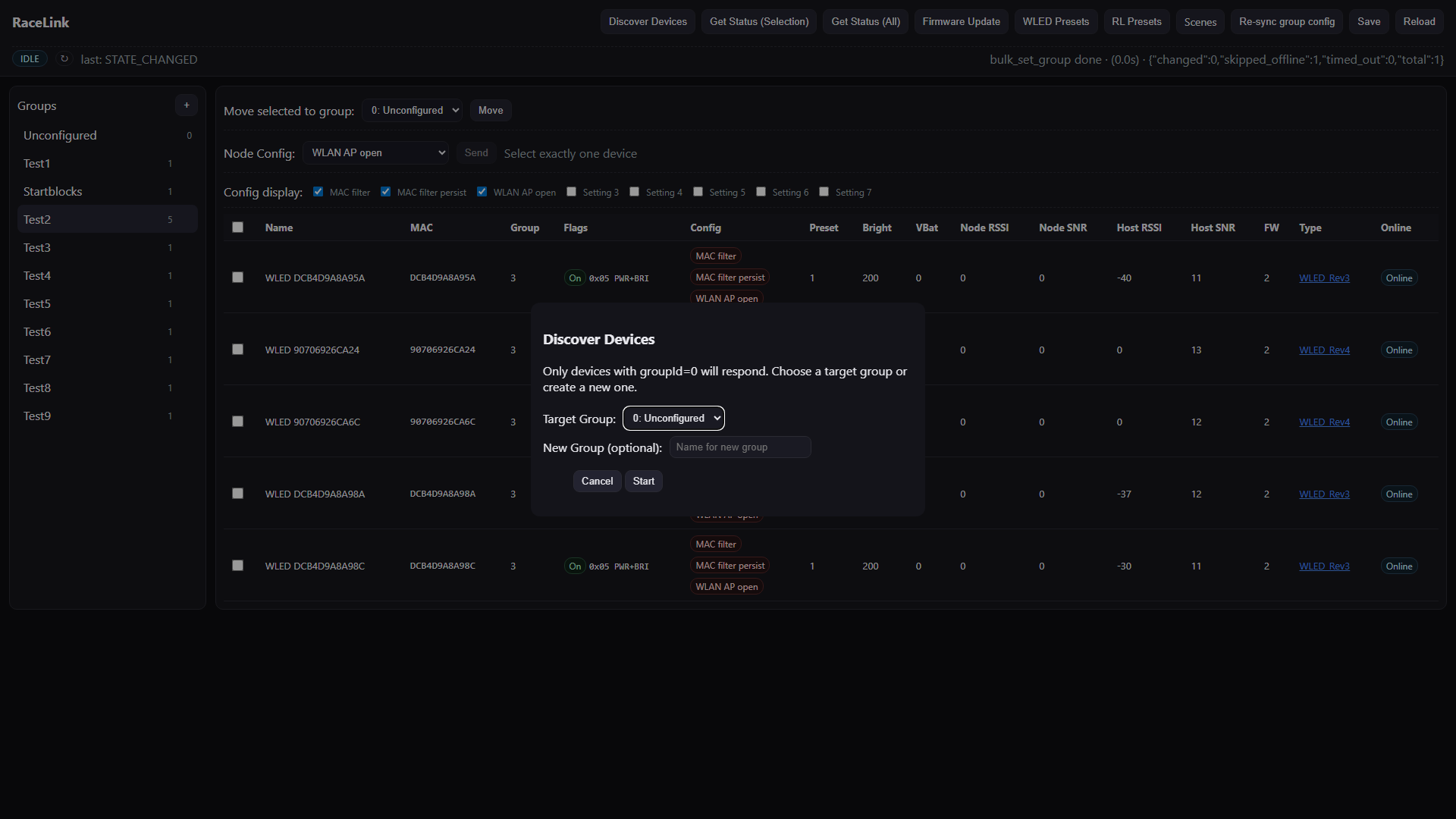
- Pre-flight: pick a default group for newly-found devices ("Unconfigured" is the safe default).
- On Start: the host fires a broadcast
OPC_DEVICES, opens an RX window of a few seconds, collectsIDENTIFY_REPLYpackets, shows them as they arrive in the dialog's table. - On done: the dialog shows the discovery summary; the underlying
device table updates via SSE
refresh.what=["devices"].
Firmware Update (OTA) dialog¶
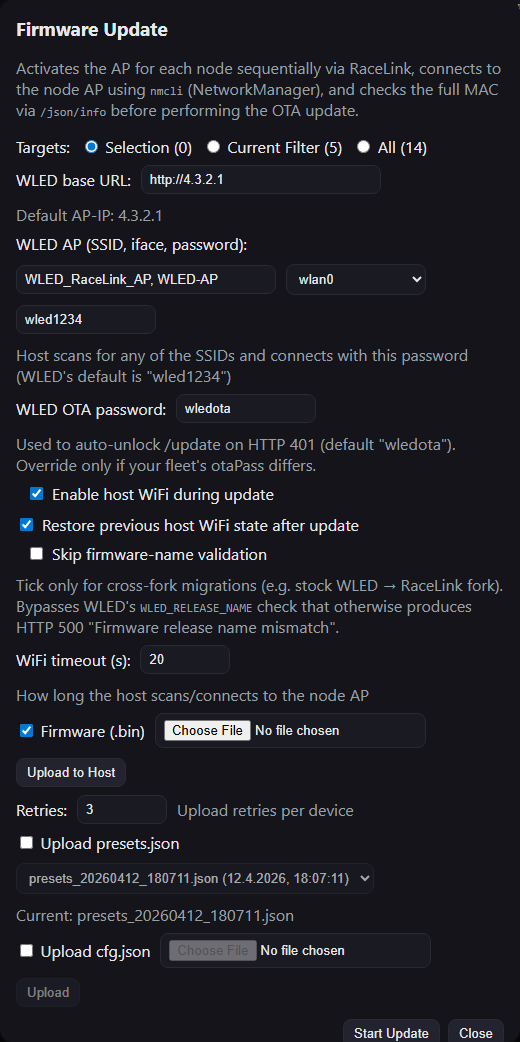
The most complex of the task-managed dialogs. Each target device goes through a multi-stage workflow:
HOST_WIFI_ON— host's NetworkManager /nmcliconnects to the node's WiFi AP.UPLOAD_FW— POST to/updateon the node's HTTP endpoint.UPLOAD_PRESETS(optional) — POSTpresets.jsonif the operator opted in.UPLOAD_CFG(optional) — POSTcfg.jsonif the operator opted in.HOST_WIFI_OFF— disconnect the host from the node's AP.
Per-device fields surfaced in the dialog: stage, index/total,
addr (MAC), message. The dialog renders a per-device row that
turns green on success, red on failure, with the failure message
inline.
OTA gates that produce HTTP 401 are auto-recovered host-side: the
host POSTs /settings/sec to clear the OTA-lock and flip
otaSameSubnet=false. The change is persisted in the device's
cfg.json — first-time OTA on a device pays this cost, subsequent
OTAs run cleanly.
For the OTA gate matrix (developer view), see
DEVELOPER_GUIDE.md §"WLED OTA gate matrix".
Get Status (status poll)¶
Broadcasts OPC_STATUS, collects replies. Updates lastSeen,
brightness, etc. on each device. Runs as a task because large fleets
can take 5–10 seconds.
Preset libraries — RL Presets and WLED Presets¶
Two distinct dialogs manage two distinct preset concepts. Don't confuse them: RL Presets are RaceLink's own deterministic-effect library, referenced by name from scene actions; WLED Presets are WLED's own preset slots stored on each device's flash, addressed by index (1, 2, 3, …). They live at different layers of the system and are edited through different dialogs.
RL Presets dialog¶
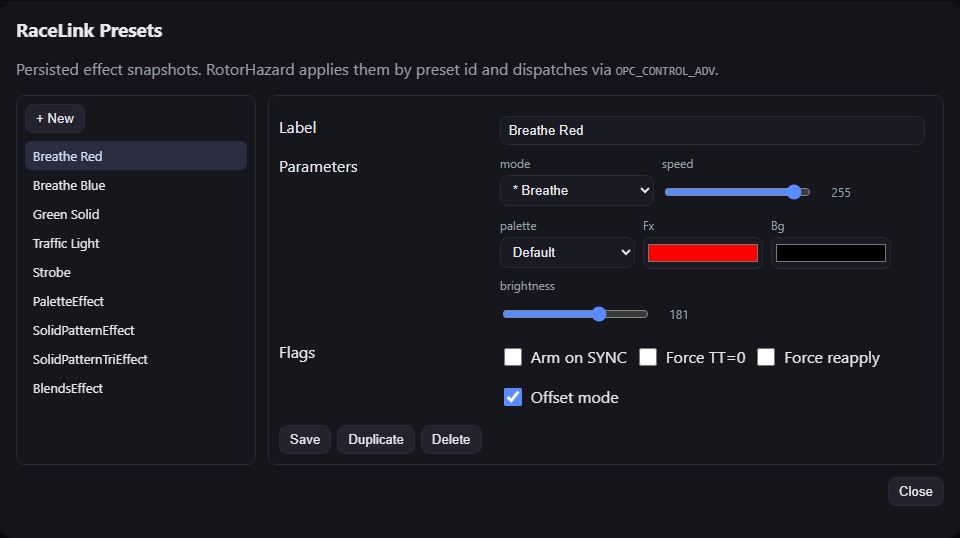
Reached from the Scenes page via Manage RL Presets, or from the Devices page toolbar via RL Presets. The dialog is split into two panes:
- Left — the library of saved RL presets. Each row shows the
preset name and effect kind (e.g.
BreatheEffect,SolidPatternEffect,BlendsEffect,PaletteEffect). - Right — the parameter editor for the selected preset. The fields adapt to the effect kind: solid colours pick a colour; palette effects pick a palette and speed; pattern effects expose per-segment parameters. Below the editor are Save, Duplicate, and Delete.
RL presets are referenced by name from scene actions
(apply_rl_preset:<name>). Renaming a preset re-points all scene
actions automatically — the host re-writes scene records when the
preset record changes.
For the wire-level mapping of an RL preset to OPC_CONTROL see
CONCEPTS.md.
WLED Presets dialog¶
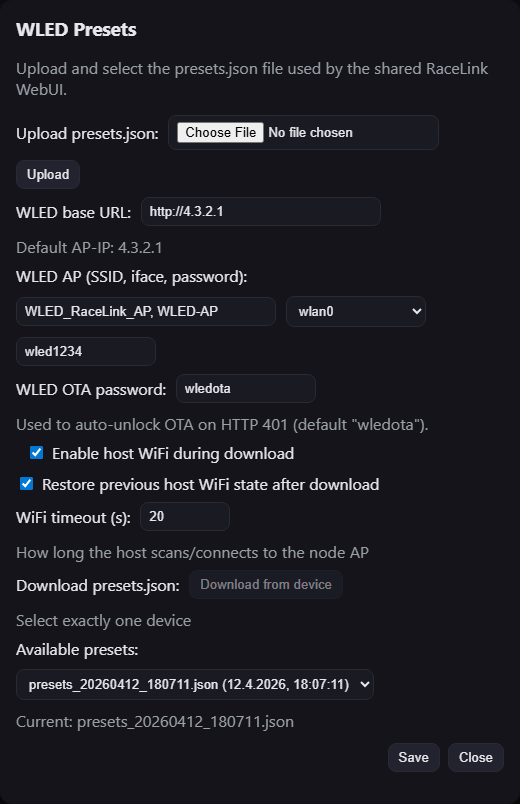
Reached from the Devices page toolbar via WLED Presets. This
dialog uploads a presets.json file to one or more selected
devices via the same OTA path as a firmware update — the host
connects to each device's AP, POSTs presets.json to the WLED
endpoint, and disconnects.
The dialog reuses the OTA / AP fields from the Firmware Update
flow (target picker, AP credentials, OTA password, WiFi timeout,
retries) because the underlying upload mechanism is the same. The
content-side field is the presets.json file picker — the host
validates the file as JSON before starting.
Outcome: each target device's WLED preset slots (1, 2, 3, …) are overwritten with the preset definitions from the file. Scenes that apply a WLED preset by index will then resolve to those slot definitions on the device.
The dialog runs through the task manager — closing it does not cancel the upload, and per-device progress is shown in the dialog body.
State updates — SSE-driven refresh model¶
The WebUI never polls. All data updates arrive over a single Server-Sent-Events (SSE) stream, with two event types:
refresh—{"what": [...]}— the JS reloads parts of its model from the REST API. Tokens:groups,devices,presets,scenes.task—{"name", "stage", "message", ...}— long-running task progress.
The host derives the refresh.what payload from internal
state-scope tokens (FULL, DEVICES, DEVICE_MEMBERSHIP,
DEVICE_SPECIALS, GROUPS, PRESETS, SCENES). Each operator
action that mutates persisted state passes a scope set to
save_to_db(), and the SSE broadcast follows.
This is what makes the UI feel snappy and consistent: a device
rename triggers DEVICES → refresh.what=["devices"] →
loadDevices() reloads only the device table; group and preset
dropdowns stay untouched.
For the full mapping see
../../reference/sse-channels.md
and the per-element matrix in
../ARCHITECTURE.md §"UI Scope Matrix".
Confirmation, toast, and busy patterns¶
These conventions are enforced — every page in the WebUI follows them.
Confirmation — confirmDestructive(message)¶
Destructive operations always confirm via a shared helper. The wording template:
"{Verb} {subject}? {Consequence sentence.}"
Examples:
- "Delete scene 'Intro Effects'? This cannot be undone."
- "Re-broadcast every device's group assignment to the network now? This sends RF traffic for every known node."
- "Move 5 devices to 'Pit Wall'? This sends a SET_GROUP packet to each one."
The wrapper currently routes to native confirm() —
keyboard-accessible, zero-dependency.
Toast feedback¶
Two flavours, exposed on window.RL:
showToast(msg)— green, 3 s default. Success / busy info. Examples: "Saved", "Run completed", "Connection re-established".showToastError(msg)— red, 5 s default. Validation errors, server errors, "select exactly one device" hints.
Native alert() is never used in the operator-facing UI.
Pending state — setBusy(true/false)¶
Long operations disable their initiator button while running. Two helper paradigms:
- Top-level toolbar:
setBusy(true)disables the whole top bar (Discover / Get Status / Save / Reload). Used during gateway operations. - Per-page editor: each editor (Scene, RL Preset) has its own busy helper that disables its Save / Run / Delete buttons during the current dispatch.
When a long op completes, fade in a showToast summary; on
failure, fade in a showToastError.
Unsaved-changes protection¶
The Scene editor and the RL Preset editor both warn the operator
about unsaved changes via a beforeunload listener.
The dirty check is byte-exact on the canonical record shape — even whitespace in a label counts. After a successful save, the flag clears. If the prompt fires anyway, you've changed something since the save.
The warning fires on:
- Page refresh (F5)
- Tab close
- Navigating between Devices and Scenes (the
<a class="rl-nav-link">intercept)
It does NOT fire on:
- Losing focus to another tab
- Computer sleep / display sleep
Cost-estimator — what the badges mean¶
Every scene action carries a small badge:
| Token | Meaning |
|---|---|
≈ 3 pkts |
Estimated packet count (some actions become 1 broadcast, others fan out per group) |
84 B |
Estimated total body bytes across those packets |
12 ms |
Estimated LoRa airtime at SF7/250 kHz/CR4:5 (Semtech AN1200.13) |
actual: 47 ms |
Wall-clock duration of the most recent run on this action |
The estimated airtime is radio time only. The actual is wall clock, which includes USB latency, gateway LBT random backoff, and host runner overhead. A typical ratio is 3–4× actual / estimate.
A hover tooltip on the badge explains: "Last run: 47 ms wall-clock (estimate 12 ms · +35 ms overhead)."
The actual values stick to the badges until you load a different
scene, create a new draft, or run the same scene again. Edits to
the draft do not invalidate the actual measurements; the estimate
side updates live, but actual keeps showing the last run's data
so you can compare before/after tweaks.
Lifecycle resilience¶
The WebUI is built to survive RotorHazard restarts and gateway disconnects without operator intervention.
Browser ↔ Host SSE auto-reconnect¶
When the SSE stream closes (RotorHazard restart, host crash, network hiccup), the WebUI:
- Shows a transient banner "RotorHazard not reachable — retrying …".
- Polls
GET /api/healthwith a short timeout, plus tries to reconnect the SSE stream. - Backoff: 1 s → 2 s → 4 s → 8 s → 10 s clamp.
- On successful reconnect: fires
GET /api/masterto rehydrate the full state, dismisses the banner, shows a "Connection re-established" toast.
The browser does NOT cache stale state — every reconnect hard-resets the local Gateway state to the server's report.
Host ↔ Gateway auto-retry¶
When the gateway connection breaks (LINK_LOST or PORT_BUSY), the
host kicks off an auto-retry timer with exponential backoff:
PORT_BUSY(port held by another process): 2 s → 5 s → 10 s → 20 s → 30 s clamp.LINK_LOST(cable unplugged or USB disconnect): same backoff.NOT_FOUND(no gateway hardware found): no auto-retry — hardware is absent, waiting doesn't help. Manual retry only.
The next_retry_in_s field is included in the gateway-status
broadcast so the WebUI can show a countdown.
Plugin atexit hook¶
The RotorHazard plugin registers an atexit handler that closes
the gateway transport even when Evt.SHUTDOWN doesn't fire (hot
reload, SIGTERM, Ctrl-C). This prevents the next plugin start from
seeing PORT_BUSY because the previous instance leaked the
exclusive lock.
Smoke-test sequence — verify the WebUI works end-to-end¶
- Open the WebUI. Master pill should turn cyan (
IDLE) within 1 s of page load. - Click Discover Devices. Modal opens, pick "Unconfigured", click Start. Devices appear in the dialog's table and in the main device list.
- Move devices to a real group. Sidebar group selection, tick a row, Move. The masterbar's task summary shows the per-device count.
- Author an RL preset. Click Manage RL Presets. Add a preset, name it, save.
- Author a scene. Go to Scenes page, + New, add an
Apply RL Presetaction targeting your group, Save. - Run the scene. Click Run. The action row borders go
green; cost badge shows
actual: NNN ms. - Hover the master pill. Tooltip explains the IDLE state.
- Disconnect the gateway USB. Within 50 ms the pill should go
red with the
LINK_LOSTbanner. Reconnect. Within 5 s the pill returns to IDLE and the banner clears with a toast.
If any of those steps misbehave, see
../../troubleshooting.md.
See also¶
OPERATOR_GUIDE.md— the task-shaped operator walkthrough (Discover → Group → Configure → Author → Run).CONCEPTS.md— pragmatic explanation ofOPC_CONTROL/OPC_OFFSET/OPC_SYNC.UI_CONVENTIONS.md— button vocabulary, toast / confirm conventions (developer-side).../../RaceLink_RH_Plugin/operator-setup.md— how the WebUI fits inside RotorHazard.